Selecting the SpecObjects Folder
The SpecObjects folder contains all the SpecObjects that are inside the ReqIF file displayed as a single flat list. The order in which they are displayed reflects the order in which they have been defined in the ReqIF file. When you select the SpecObjects folder, a Table View is displayed on the right hand side of the application window. This table contains every SpecObject with the Identifiable properties displayed individually in columns.
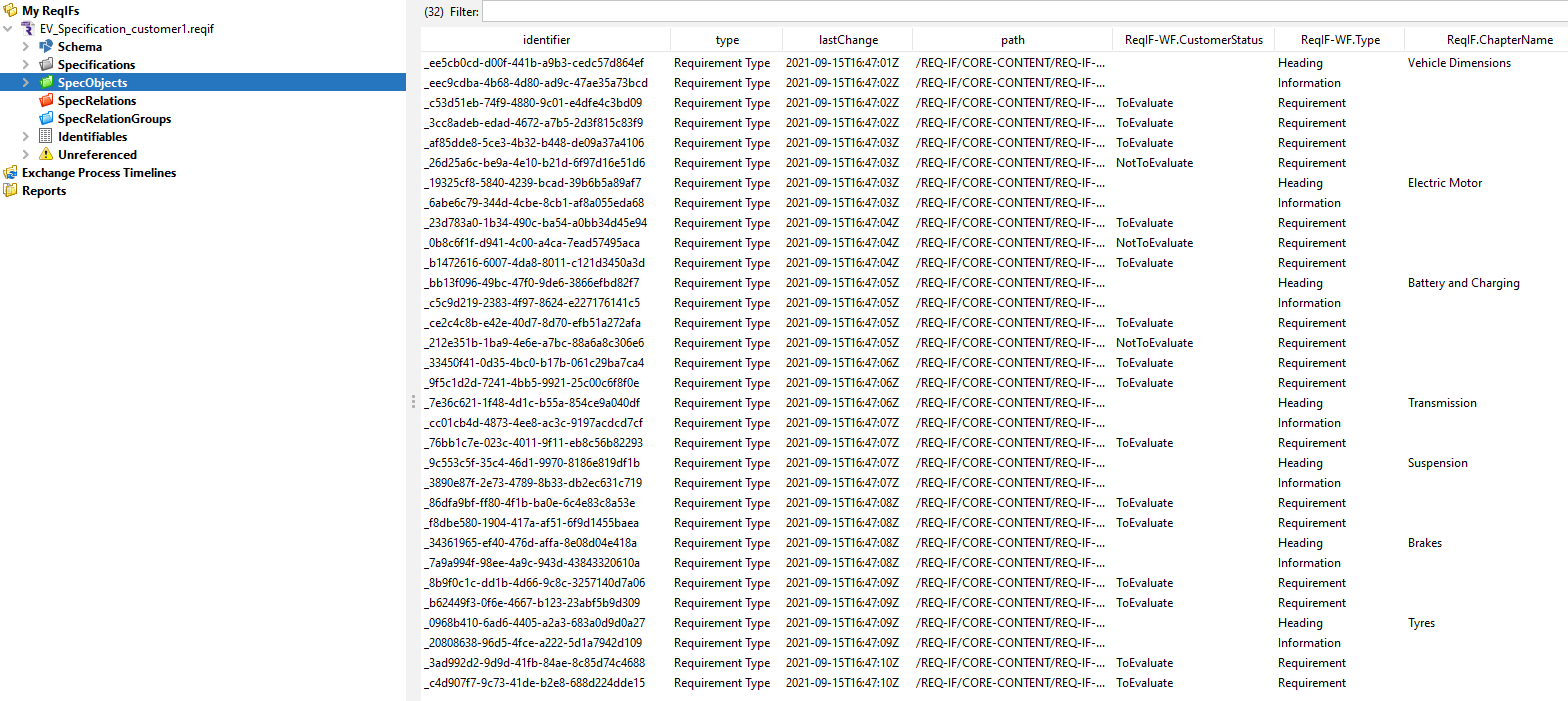
Filtering the SpecObjects Table
This table is very useful if you need to locate one or more SpecObjects. Simply start typing any text into the Filter field and the list will be filtered to only show those objects that contain the text you have entered. The filter is applied to all columns except the path column.
Filter Examples
- Enter any part of the identifier to quickly locate it
- Start typing any part of an AttributeValue to see only those SpecObjects that contain the AttributeValue.
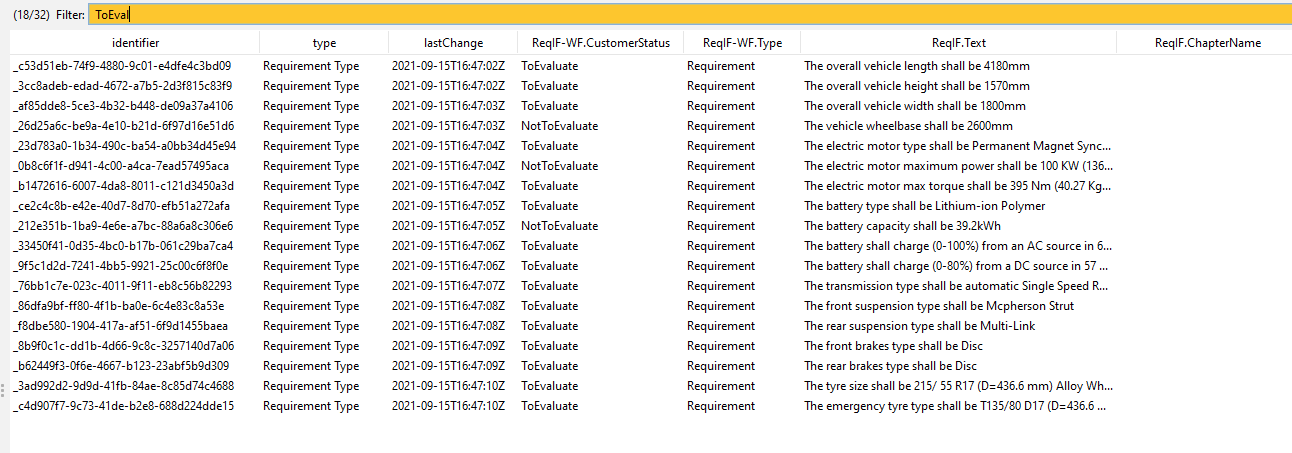
Navigation in the SpecObjects Table
Once you have filtered the SpecObjects collection, choose a specific SpecObject in the table and then select the Go to option from the popup menu to locate it in the Tree Window under the SpecObjects folder in order to view the details of the object.